Almost everything happens on one page — your workspace. It has three parts: a menu of tools on the left, the panel for whichever tool you picked in the middle, and a gallery of everything you have made on the right.
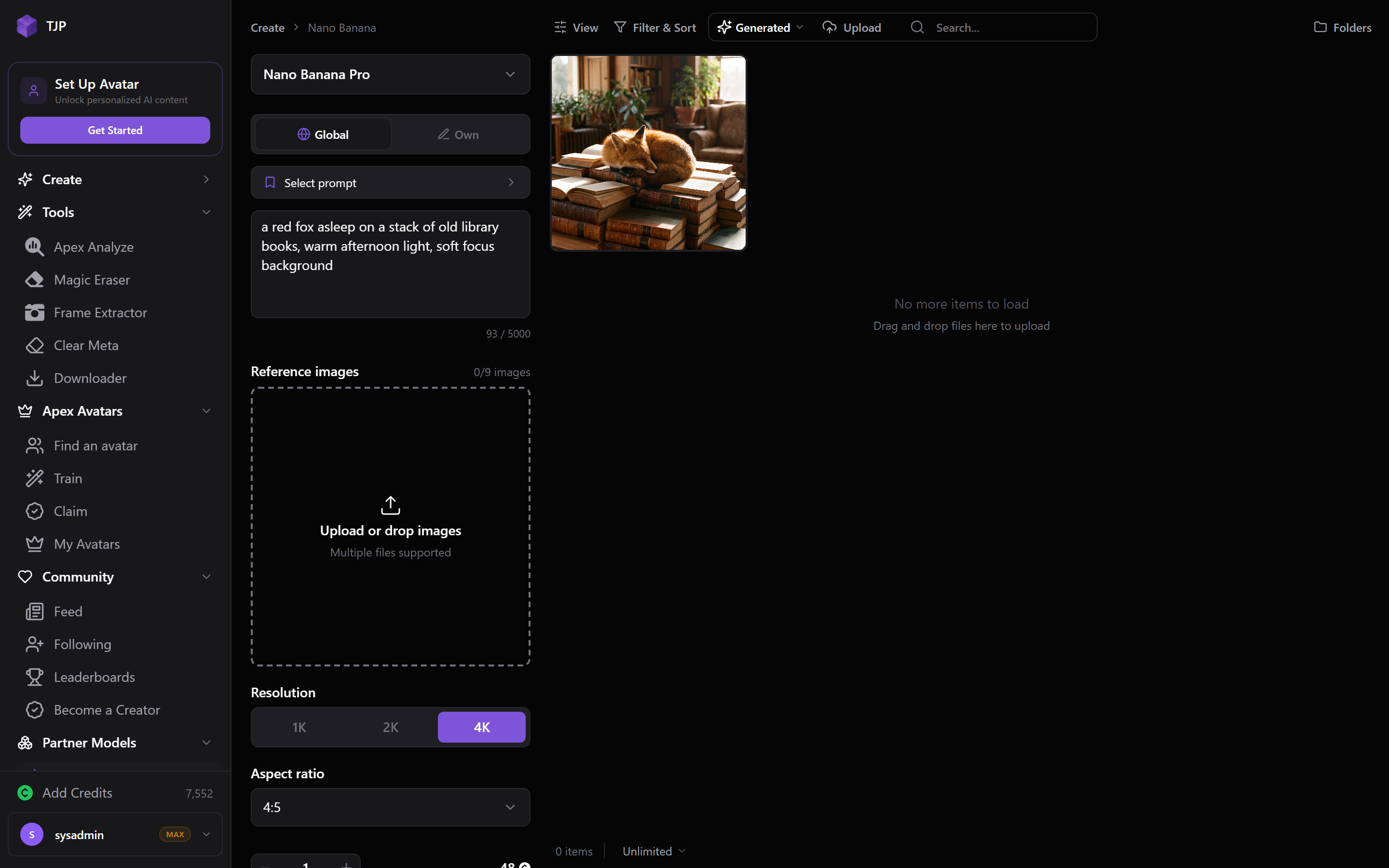
The menu
Everything you can make or do is here, grouped:
| Group | What is in it |
|---|---|
| Create | Apex Image, Apex Video, Apex img2img, Apex Edit, Apex Transfer, Apex Upscale |
| Tools | Apex Analyze, Magic Eraser, Frame Extractor, Clear Meta, Downloader |
| Partner Models | other companies’ models, each named — Nano Banana, Seedance |
| Resources | links out |
Apex is the name for the models and tools built here; Partner Models are bought in from elsewhere. The distinction matters mostly for cost and for which settings you get.
Picking one loads its panel in the middle. Until you pick something the middle says so, and offers Learn Studio and Take a Tour — the guided version of this page, inside the app.
The panel
Whatever you selected, its controls appear here. They differ per tool, which is why the panel is never quite the same twice:
- The prompt box, where there is one, with its own character count shown beneath — the limit belongs to the tool, not the product
- Reference media, where the tool accepts it — how many is set by the tool, and the panel says so beside the field
- Reference audio on video tools — MP3 or WAV
- Resolution, in whatever steps that tool offers
- The button that starts it, showing the cost in credits before you commit
What each Create tool is for
| Apex Image | the flagship image model. Needs a connected avatar — see avatars |
| Apex Video | video, from a description or a still |
| Apex img2img | a new image based on one you supply |
| Apex Edit | change one thing about a picture: Hairstyle, Poses, Facial Expressions, Outfits, Tattoos, Hair Color, Dim Lighting, Makeup, Photo Effects |
| Apex Transfer | move a feature from one picture onto another — Tattoos, Outfits |
| Apex Upscale | make a picture bigger and sharper |
The gallery
The rest of the screen. Everything you make or bring in lands here, newest first. It is private.
Down the side of the gallery are views that filter it:
| View | Shows |
|---|---|
| Recent | everything, newest first |
| Generated | only things you made here |
| Uploads | only files you brought from your device |
| Downloads | only things saved from a link |
| Edited | only results of erasing, upscaling and similar |
| Favorites | only things you starred |
| Trash | what you have deleted, restorable until emptied |
| Your folders | whatever you put in them |
These are filters over one library, not separate storage. An image you generated and then starred appears under Recent, Generated and Favorites at once. There is only one copy of it.
Your library covers this properly, and folders covers organising.
Opening a single item
Click anything in the gallery to open it full size, with its details beside it and buttons for the things you can do to it: favourite, download, edit, upscale, delete.
The address in your browser changes when you open something, so you can copy it and come back to that exact item later. That link is private — it only works for you.
Everything else
| Where | What is there |
|---|---|
| Notifications | what happened while you were away — finished work, follows, replies |
| Settings | your profile, plan, payment, security, notifications, blocked accounts |
| Support | messages to a human, and their replies |
| Feature requests | asking for something that does not exist yet, and voting on other people’s asks |
Your credit balance sits at the bottom of the menu, beside Add Credits, with your account below it.
Some entries appear only once a feature is switched on for you, so your menu may be shorter than what is described here. Nothing is broken and there is no setting you have missed.
On a phone
Everything is available on a phone. The tool panel and the gallery share the screen rather than sitting side by side, so you switch between them instead of seeing both. Nothing is missing, and work started on a phone is in your library on a computer, because the library belongs to your account rather than to a device.